Introduction
AgentPhone is the bridge between your AI agents and the physical world. It exposes a standard Android device as a set of MCP (Model Context Protocol) tools, allowing LLMs to touch screens, send messages, and manage files just like a human user.
What is AgentPhone?
Unlike software-only automation (which relies on fragile accessibility APIs or root hacks), AgentPhone uses a dedicated hardware layer and a custom Android ROM to provide:
- Stability: Agents run as system services, immune to background killing.
- Identity: Real SIM cards for authentic SMS and Voice calls.
- Compliance: No root required; uses signed OEM system permissions.
Architecture Overview
The system consists of three main components:
1. AgentPhone Device
The physical Android hardware running our custom daemon.
2. AgentHub
USB/Network bridge that manages device connections and power.
3. MCP Server
The interface your LLM talks to. Translates tool calls into device commands.
Claude Desktop Integration
To use AgentPhone with Claude Desktop, add the following StreamableHTTP configuration to your claude_desktop_config.json:
{
  "mcpServers": {
    "agentphone": {
      "url": "https://agenphone-api.yunke.ai/mcp/",
      "headers": {
        "Authorization": "Bearer YOUR_API_KEY"
      }
    }
  }
}
OpenClaw Integration
Follow these steps to install and configure AgentPhone in OpenClaw:
Install Skillhub store from https://skillshub.yunke.ai/omni-cli/npm/skillshub.md, but only install the CLI.Enable the agenphone skillLog inSend verification codeList all agenphone capabilities for me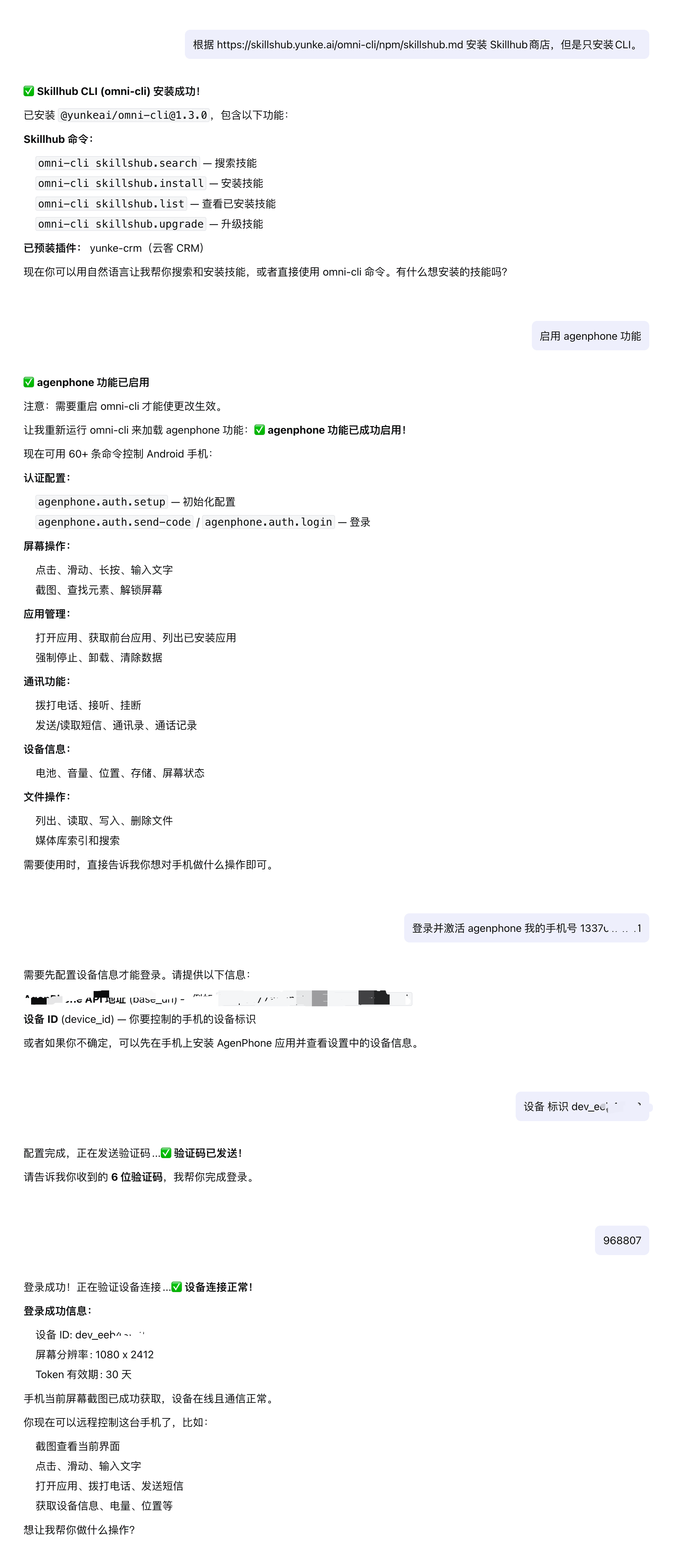
Manus Integration
Manus supports custom MCP servers natively. Follow these steps to connect AgentPhone:
- Go to Settings → Integrations → Custom MCP Servers.
- Click Add Custom MCP Server.
- Set the server name to
AgentPhone, URL tohttps://agenphone-api.yunke.ai/mcp/, and the authorization header toAuthorization: Bearer YOUR_API_KEY. - Click Test Connection to verify, then save. AgentPhone tools will be available in your Manus workflows.
ZeroClaw & Perplexity
For search-based agents like Perplexity or ZeroClaw, AgentPhone provides a "Grounding" interface.
Configure the MCP endpoint in your agent's tool definition settings. The agent will then be able to "search" your phone's content (SMS, Photos, Files) just like it searches the web.
Mobile App Installation
The AgentPhone Companion App is required to link your physical device to the cloud.
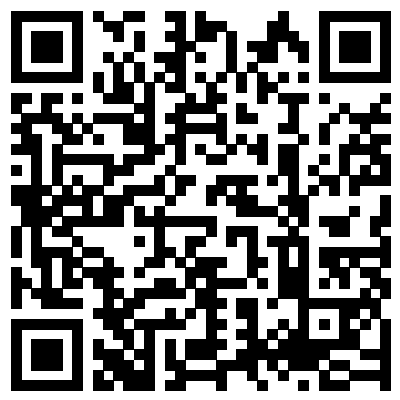
Or scan to download
* Note: Requires Android 11 or higher. For best performance, use a dedicated device.
Linking a Device
Follow these steps to connect your Android device to AgentPhone.
Open the AgentPhone App
After installing the APK, tap the AgentPhone icon on your home screen to launch the app.

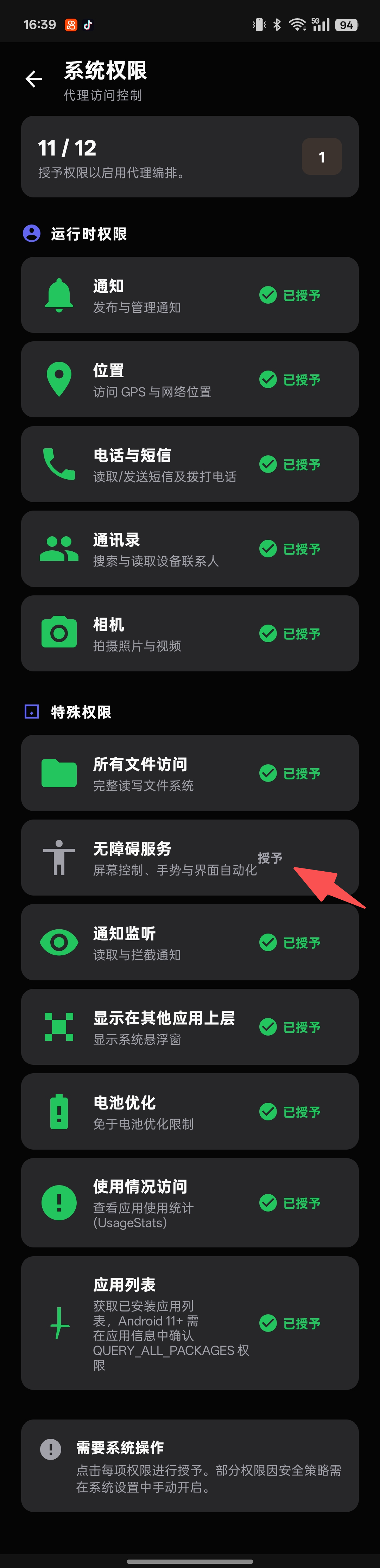
Grant All Permissions
The app will show a permissions checklist. Grant all required permissions to reach 12/12. Some special permissions (Accessibility, Notification Listener) must be enabled manually in system settings.
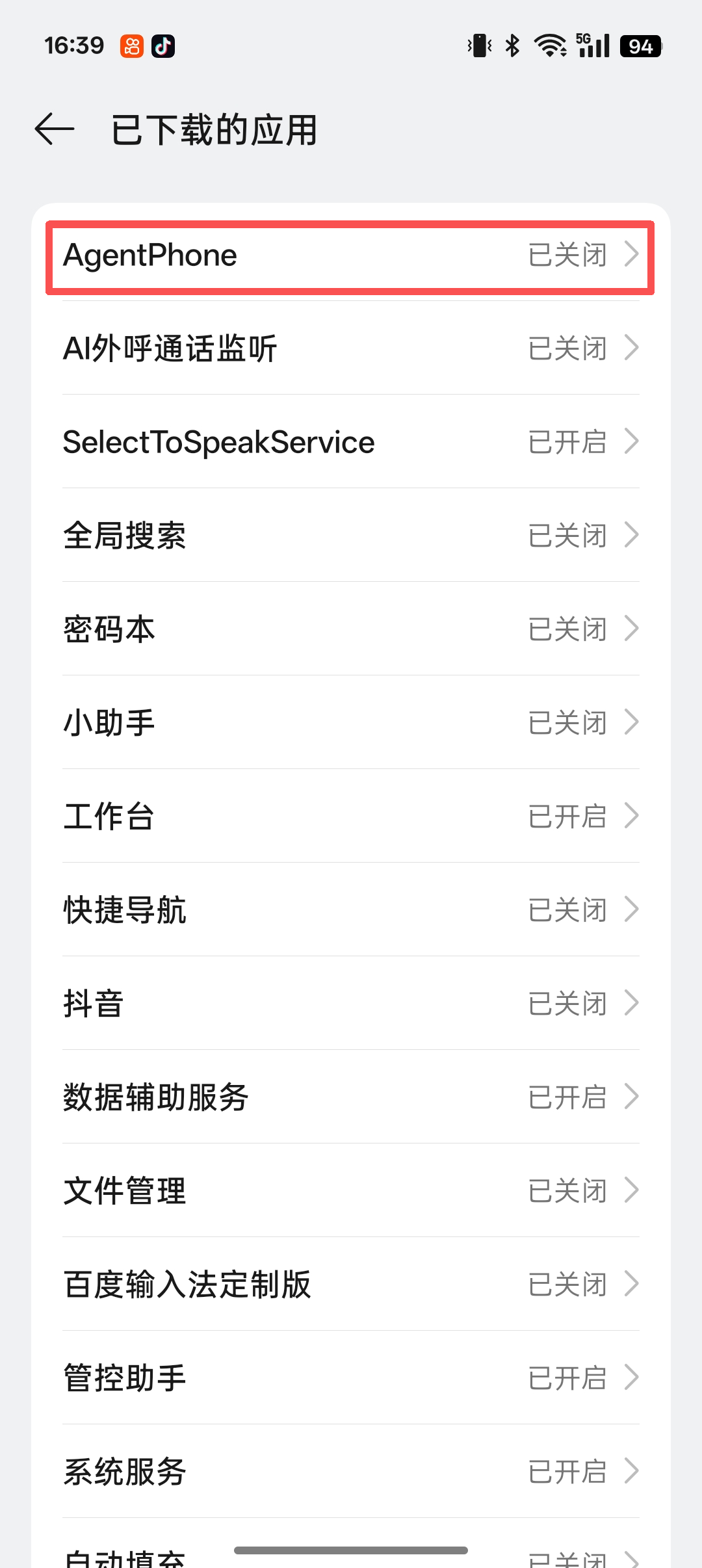
Enable Accessibility Service
Go to System Settings → Accessibility → Downloaded Apps, find AgentPhone and tap to open its settings.
Allow Full Device Control
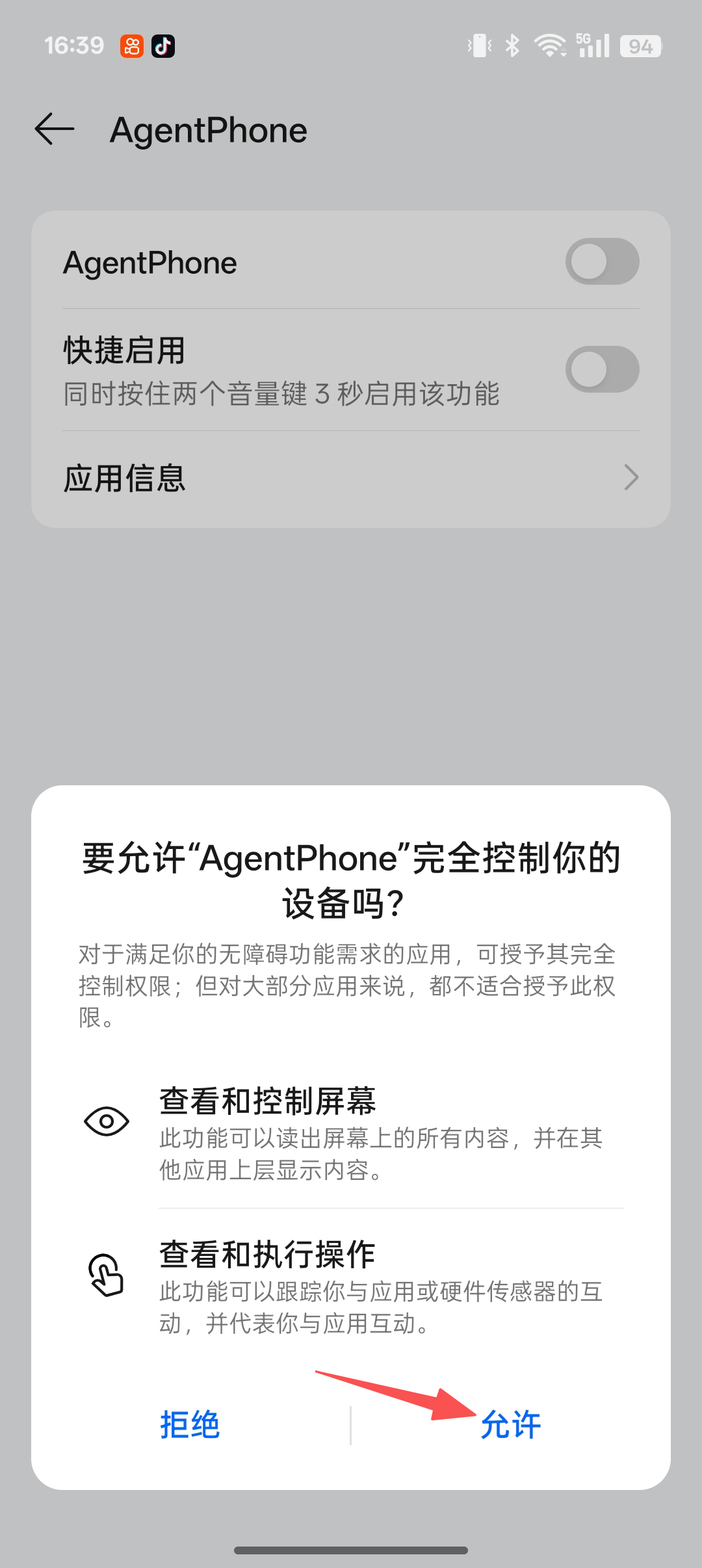
When the system dialog appears asking to allow AgentPhone to fully control your device, tap "Allow".
Copy Your Device Secret
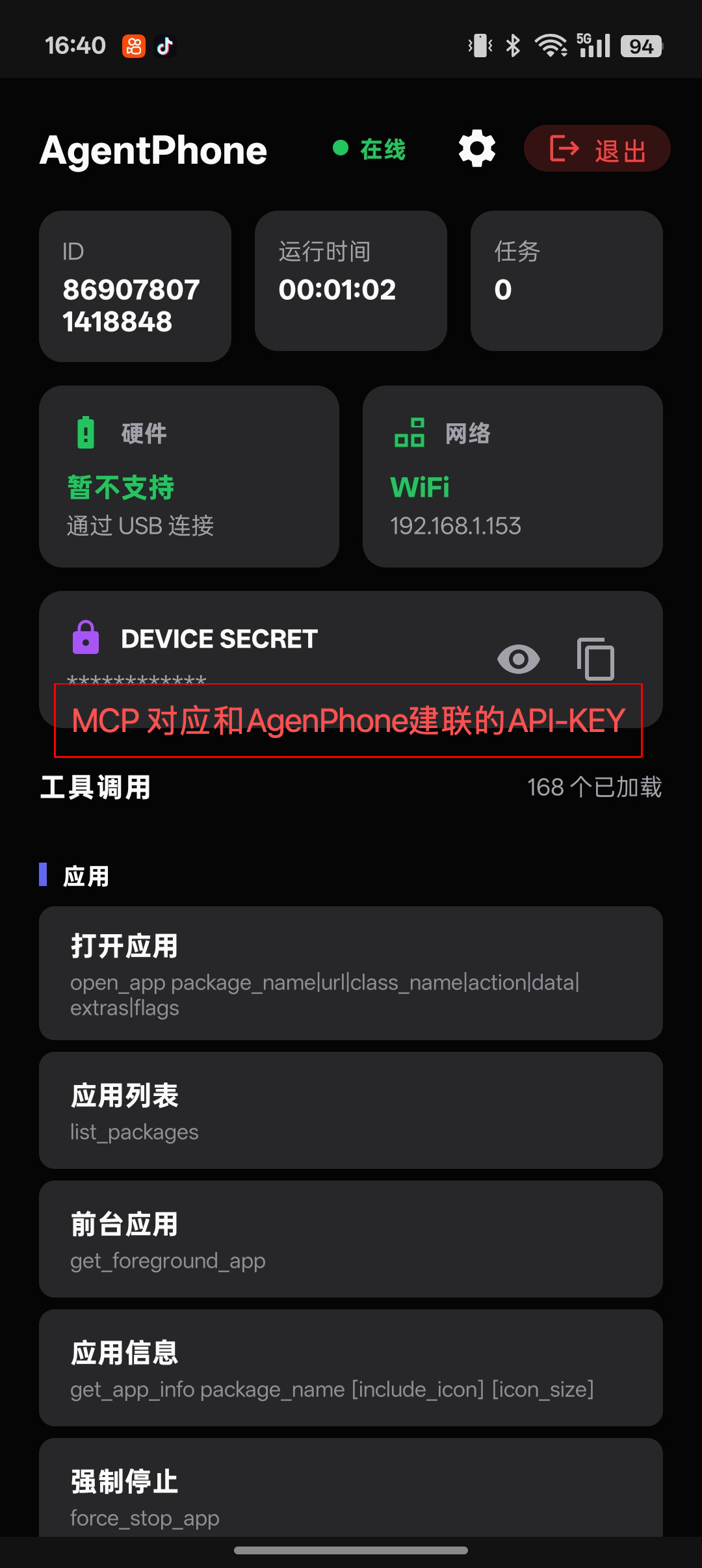
Back on the app home screen, you'll see DEVICE SECRET. Tap the copy icon and use this value as the Bearer token in your MCP client configuration.
MCP Tool Reference
Complete reference for all tools exposed by the AgentPhone MCP server. Call create_task first to obtain a task_id before invoking functional tools.
Task Management
create_taskCreate an AI task and obtain a task_id. Must be called before invoking any functional tool. Params: task_type (e.g. "phone_call", "data_collection", "outbound_call"), description (optional). Returns JSON with task_id and status.complete_taskMark a task as finished. Params: task_id, status ("completed" / "failed" / "cancelled"). Returns JSON with the updated task status.App Management
open_appOpen an application by package name or URLlist_packagesList all installed applications on the deviceget_foreground_appGet the currently active foreground applicationget_app_infoRetrieve metadata and info for a specific appforce_stop_appForce stop a running applicationuninstall_appUninstall an application from the deviceclear_app_dataClear all data and cache for an applicationCalls & SMS
callInitiate a phone call to a numberhang_upEnd the current active callanswer_callAnswer an incoming calllist_contactsRetrieve all contacts from the devicelist_call_logGet recent call historysearch_contactsSearch contacts by name or phone numbersend_smsSend an SMS message to a contactread_smsRead SMS messages from the inboxAI Outbound Call
ai_outbound_call_taskInitiate an AI outbound call (non-blocking). Sends the call command and waits for device acknowledgment (dialing state), then returns immediately. Params: phone (target number), prompt (AI conversation prompt), task_id, use_custom_prompt (optional, auto-set when prompt is provided). Returns JSON with request_id and task_id. Use query_request_events to poll for results.Screen & Touch
tapSimulate a tap at specific screen coordinatesswipePerform a swipe gesture on the screendragDrag an element from one position to anotherinput_textType text into the focused input fieldlong_pressPerform a long press at specific coordinatesglobal_actionExecute a global Android action (home, back, recents)screenshotCapture a screenshot of the current screenphone_ai_observeCapture a screenshot and analyze it with an AI vision model. Returns next-step action suggestions with pixel coordinates. Params: instruction (task description), task_id, language (default "Chinese"). Returns JSON with thought, action_raw, and structured action (click / type / scroll / finished).get_screen_hierarchyGet the full UI element hierarchy of the current screenfind_elementFind a UI element by attribute or selectorclick_by_textClick an element matching specific textclick_by_view_idClick a UI element by its view resource IDunlock_deviceUnlock the device screenset_brightnessSet the screen brightness levelDevice Info & Control
get_statusGet the current device status overviewget_device_infoRetrieve detailed device hardware and software infoget_batteryGet current battery level and charging stateget_volumeGet the current volume levelget_locationGet the device's current GPS locationget_lock_statusCheck if the device screen is lockedrebootReboot the deviceshutdownShut down the deviceset_volumeSet the device volume levelvibrateTrigger a device vibration patternphone_custom_commandSend a custom control command to the device for operations not covered by standard tools. Params: action (custom action name), task_id, params (JSON string, default "{}"), wait_response (default true). Returns command execution result.phone_command_historyQuery device command execution history. Params: limit (default 10, max 50), status (optional filter: "pending" / "sent" / "success" / "failed" / "timeout"). Returns JSON array of command records.Clipboard & Audio
get_clipboardGet the current clipboard contentset_clipboardSet text content to the clipboardplay_audioPlay an audio file on the devicestop_audioStop currently playing audioFiles & Media
list_filesList files in a specified directoryread_fileRead the content of a filewrite_fileWrite or create a file with specified contentdelete_fileDelete a file from the deviceanalyze_storageAnalyze device storage usagefind_large_filesFind large files consuming storage spaceindex_media_metadataIndex and retrieve metadata for media filessearch_mediaSearch for media files by metadata or contentNotifications & Overlay
read_notificationsRead current notifications from the status barpost_notificationPost a notification to the devicedismiss_notificationDismiss a specific notificationdismiss_all_notificationsDismiss all current notificationsshow_toastShow a brief toast message on screenshow_overlayDisplay a floating overlay windowhide_overlayHide a specific overlay windowhide_all_overlaysHide all active overlay windowslist_overlaysList all active overlay windowsTTS Speech
speak_ttsConvert text to speech and play it on the deviceTask Query
query_request_eventsQuery outbound call events by request_id. Core tool for polling AI call results. Params: request_id, event_type (optional: "status" / "dialog" / "task_summary"). Returns JSON with request status, is_completed flag, and events list. The call is considered ended when is_completed=true or a "task_summary" event appears.query_task_statusQuery current AI task status, including execution progress, latest event, and statistics. Params: task_id. Returns JSON with task info, is_completed flag, call_state, progress (request/event counts), and the latest event and request.query_task_historyQuery complete AI task history with all requests and events for tracing execution. Params: task_id, event_type (optional: "status" / "dialog" / "task_summary"), limit (default 50, max 200). Returns JSON with task info, all requests, and all events in reverse chronological order.Pricing Plans
Choose a plan that scales with your agent fleet.
Monthly
$140 / mo
- 300 mins Voice Call
- Community Support
Quarterly
$280 / qtr
- 1,800 mins Voice Call
- Priority Support
Yearly
$830 / yr
- 3,000 mins Voice Call
- Dedicated Manager
- SLA Guarantee